Account type

A letter to process-serving agency owners

Get the agency out of your head. Every job, every server, every dollar, in one place.

RocketServe runs a process-serving agency end to end: jobs, servers, dispatch, GPS-stamped proof of service, invoicing, accounting and server pay. Below is an ordinary day inside it, on the real screens.

Starts at $40/month for 80 jobs, then 50¢ for each job after that. 7 days free: the button opens a short signup form and a person sets you up. Already a customer? Log in.

RocketServe Home dashboard: a Needs attention list of overdue jobs with Call Server and Email Server buttons, four Today tiles for jobs created, attempts, served and due by today, a 30-day activity chart, a due pipeline bar, and the top of a money chart and receivables-by-age card.
The real Home screen. Every screenshot on this page is the live product with sample data. Nothing is mocked up.

Dear agency owner,

We are not going to open with a slogan. Here is what we would tell you across a desk.

A lot of software stores jobs and leaves the rest to you: the dispatching, the proving, the chasing of money. So the actual agency ends up running in spreadsheets, text messages and memory.

RocketServe runs the agency. Jobs, servers, dispatch, proof of service, invoicing, accounting, server pay: one login. Below is an ordinary day inside it, told in order, on the real screens.

Read it. Then take the seven free days. If you get stuck, call us. A person answers.

Jason Tallman — Co-Founder Rob Dayton — Co-Founder RocketServe · support@rocketserve.app · 844-725-8778

A day in RocketServe

One ordinary day, on the real screens.

Morning triage, papers arriving, dispatch, the field, a proof challenge, and the money. Each step is the screen you would actually have open, a zoom on the numbers that matter, and a note on why it works the way it does.

7:40 am

Before the phone rings, the day is already triaged.

You open Home. Needs attention sits at the top: critical and high priority, past due or with no server assigned, with Call Server and Email Server one click away. No hunting through the list to find out who went quiet.

Under it, the four numbers you would otherwise have to ask someone for: jobs created, attempts, served, and due by today with the overdue count. They are current within seconds, and every one of them is a link to its own list. Receivables aging and money issued versus paid live on the same page.

A dashboard you have to interpret is just another report. Home is built so the first thing you see is the thing that needs you.Why it looks like this

Zoomed in from the Home screen above
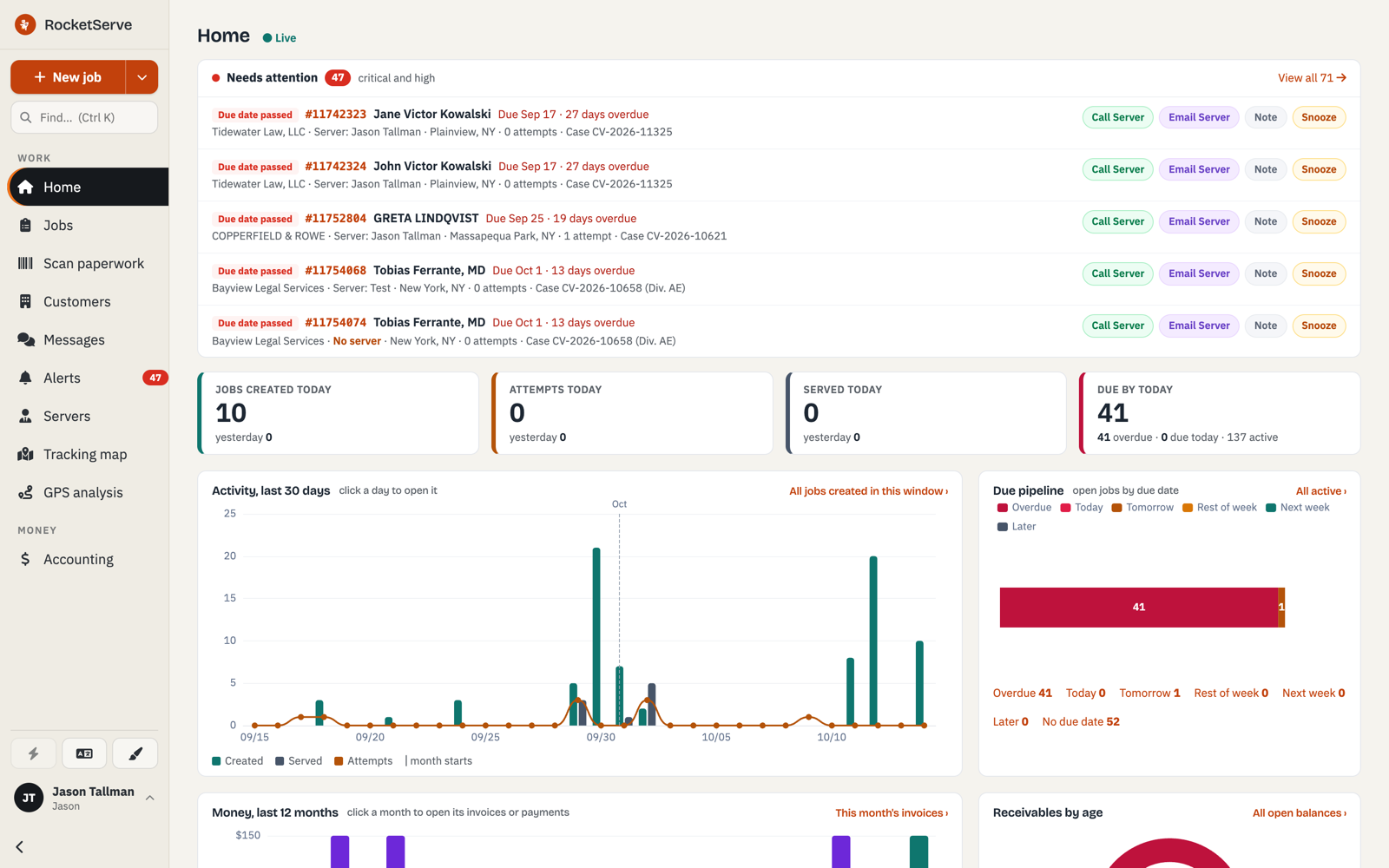
Three Needs attention rows, each marked Due date passed with the job number and recipient, then the client, server and city on the second line.
Who went quiet. Past due or without a server, critical and high priority, with the client and the server on the line.
The action buttons on three Needs attention rows: Call Server, Email Server, Note and Snooze.
One click to act. Call Server, Email Server, Note, Snooze. Nothing to open first.
Today tile: Jobs created today 10, yesterday 0.
Jobs created today: 10. Current within seconds. The number is a link to the list behind it.
Today tile: Due by today 41, with 41 overdue, 0 due today and 137 active.
Due by today: 41. 41 overdue, 137 active, on the same tile, so the morning starts with the right list.
9:10 am

Papers arrive. Drop them in and let the AI read.

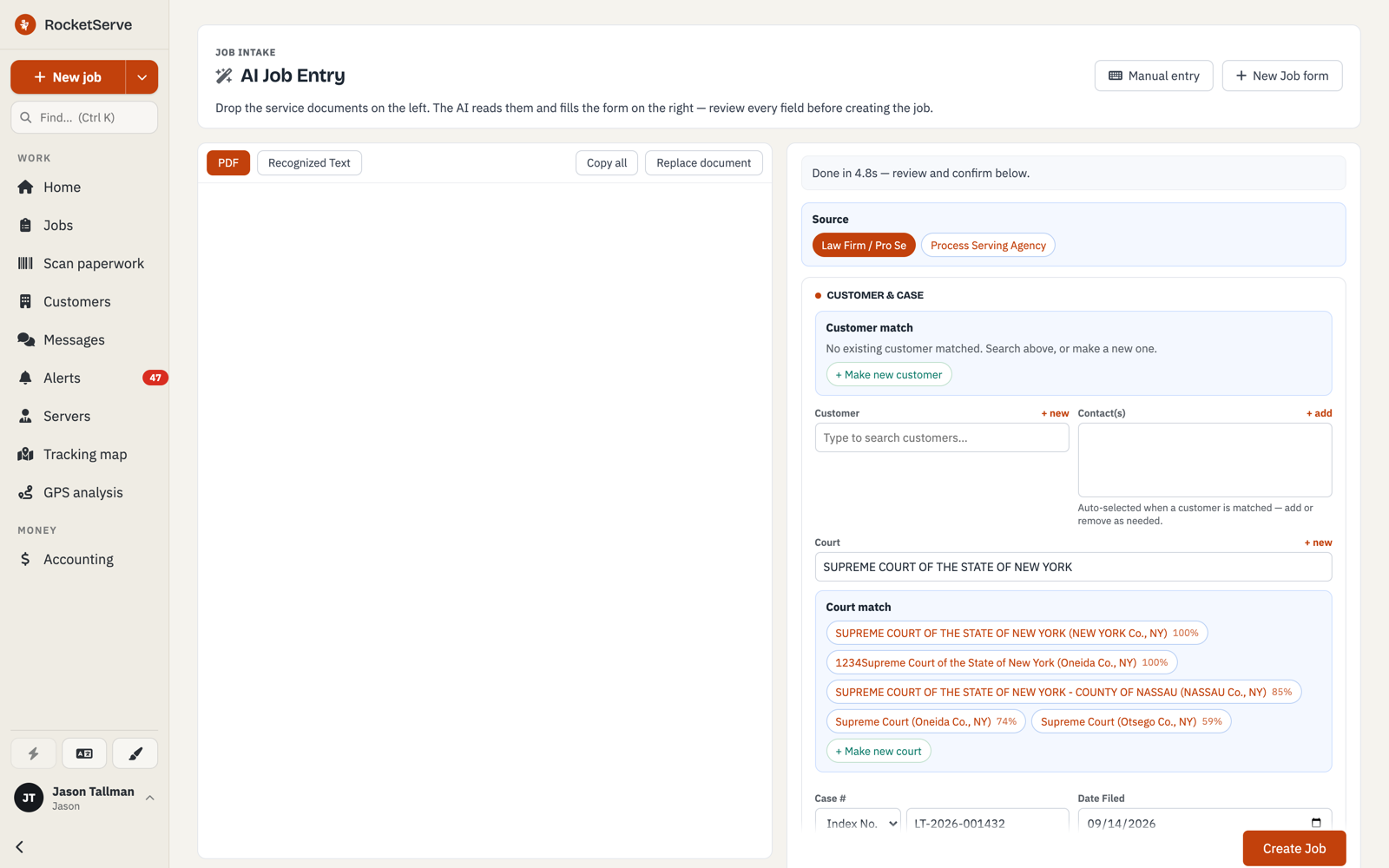
A summons comes in by email. Drop the PDF on AI Job Entry. The AI reads it and fills the job: it matched the court at 100%, pulled the case number and the date filed, and then it stopped. The banner says Done in 4.8s. Review and confirm below.

You check the fields, pick the customer, click Create Job. It is the most accurate document intake in the industry, and it still makes you look before anything is created.

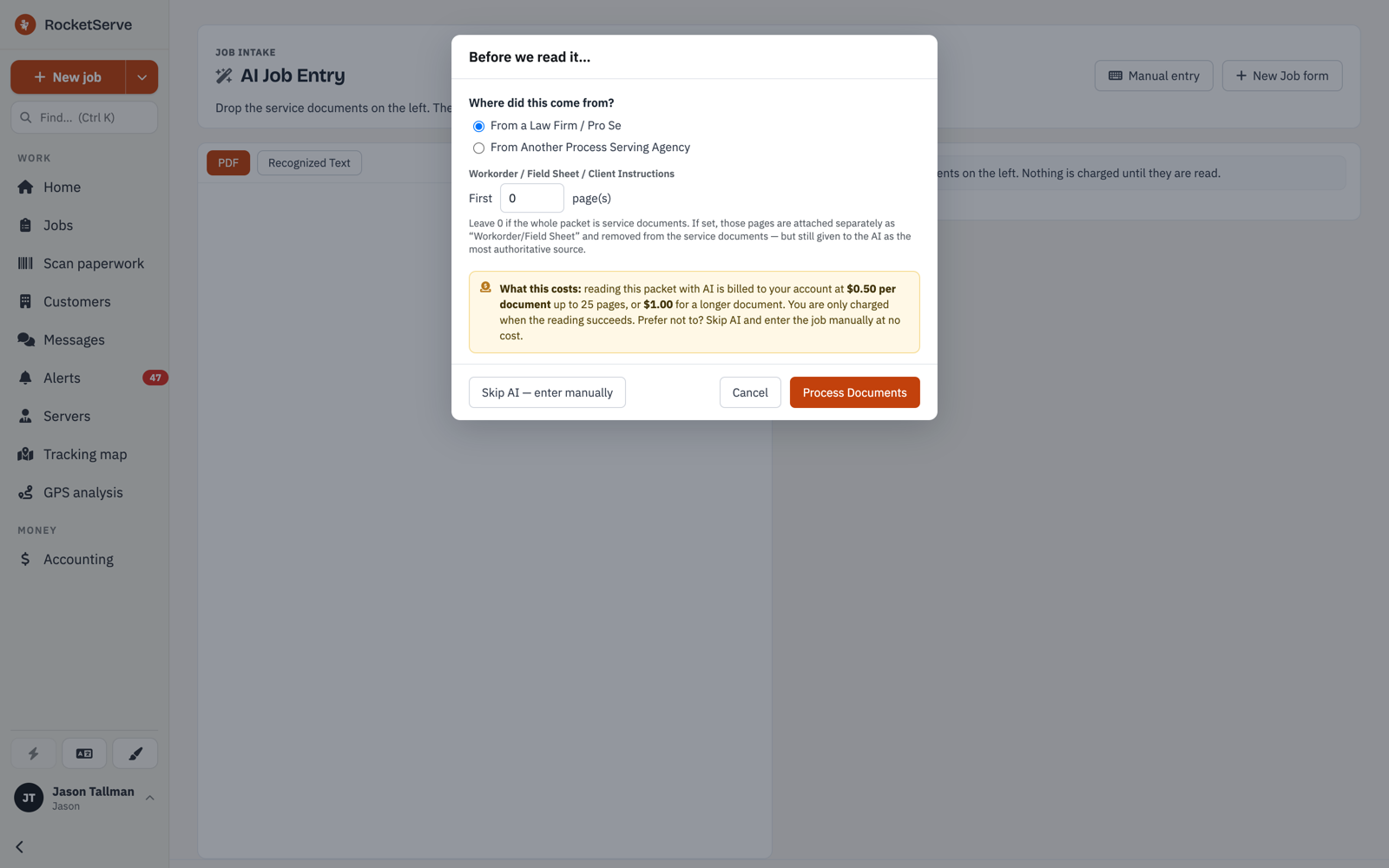
Nothing is read until you say so. A dialog first asks where the packet came from and which pages are the work order, and shows you what the read will cost. Prefer to type it in? Skip the AI and enter the job manually.

Fast is nice. Right is the point. We would rather you spend ten seconds reviewing than ten minutes fixing a job that went out wrong.Why it waits for you
The AI Job Entry form after reading a document: a banner reads Done in 4.8s, review and confirm below; Source is set to Law Firm / Pro Se; the Court field shows Supreme Court of the State of New York with a Court match list ranked by confidence, the first at 100%; the case number and date filed are filled; a Create Job button sits at the bottom.
The filled form. This is the right-hand side of AI Job Entry after the read: every field it filled, with the court match showing its confidence so you can see why it chose what it chose.

Zoomed in from the AI Job Entry form

Banner reading: Done in 4.8s, review and confirm below.
Done in 4.8s. The real timing on the real screen. Then it waits for you.
Court match chip: Supreme Court of the State of New York, New York County, with a 100% confidence badge.
Court match 100%. Candidates are ranked by confidence. One click to swap, or make a new court.
Case number field filled with an index number read from the document.
Case # read from the document. Dropped straight into the job.
Date Filed field filled with the filing date read from the document.
Date Filed, filled. You review, then Create Job.
The Before we read it dialog: asks where the packet came from, how many pages are the work order, states the per-document cost of an AI read and that you are only charged when the reading succeeds, and offers Skip AI and enter manually, Cancel, or Process Documents.
Nothing runs until you say so. The dialog before every read: where the packet came from, which pages are the work order, and what the read costs. Skip AI and enter manually is right there.
10:05 am

Dispatch, without leaving the list.

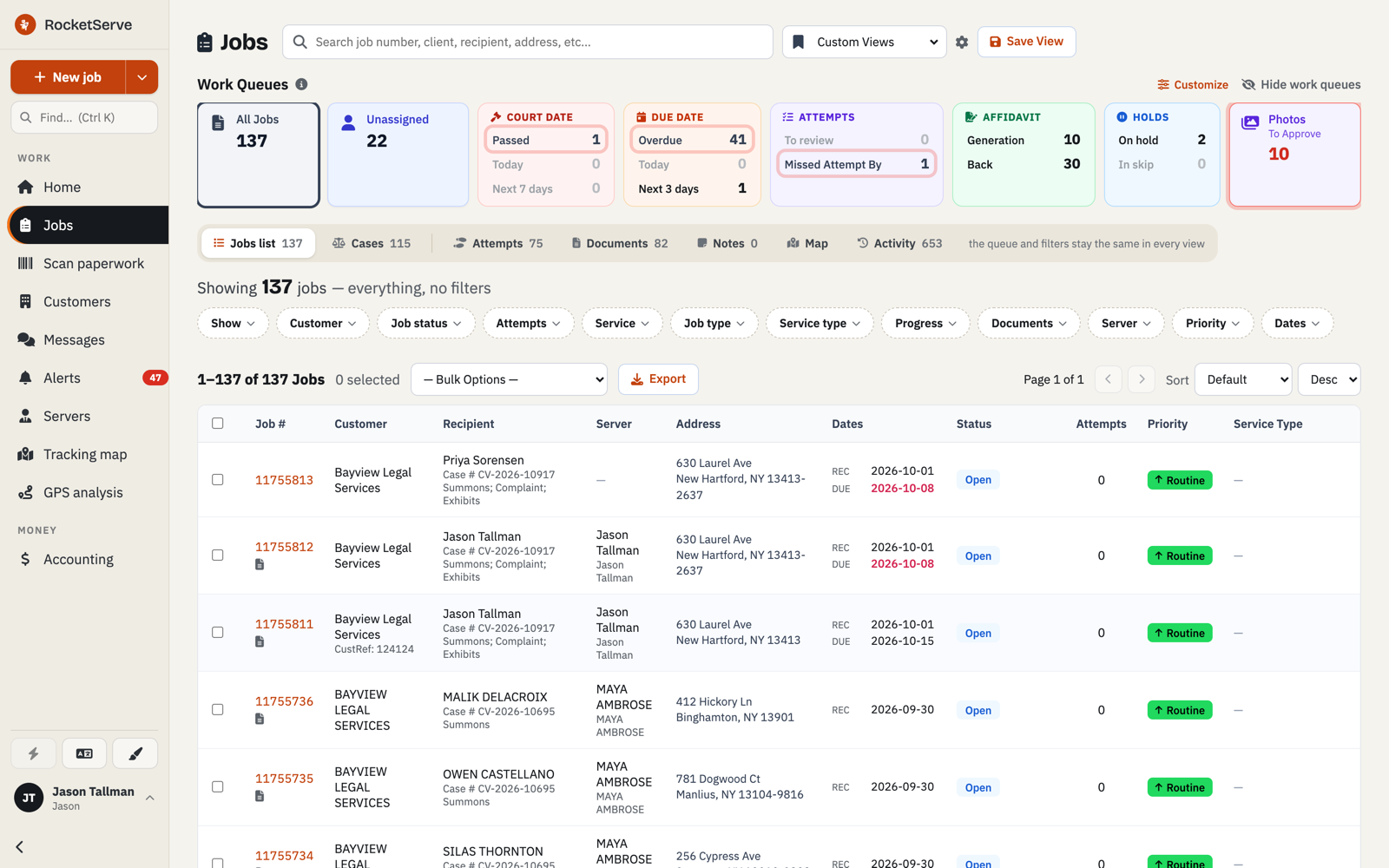
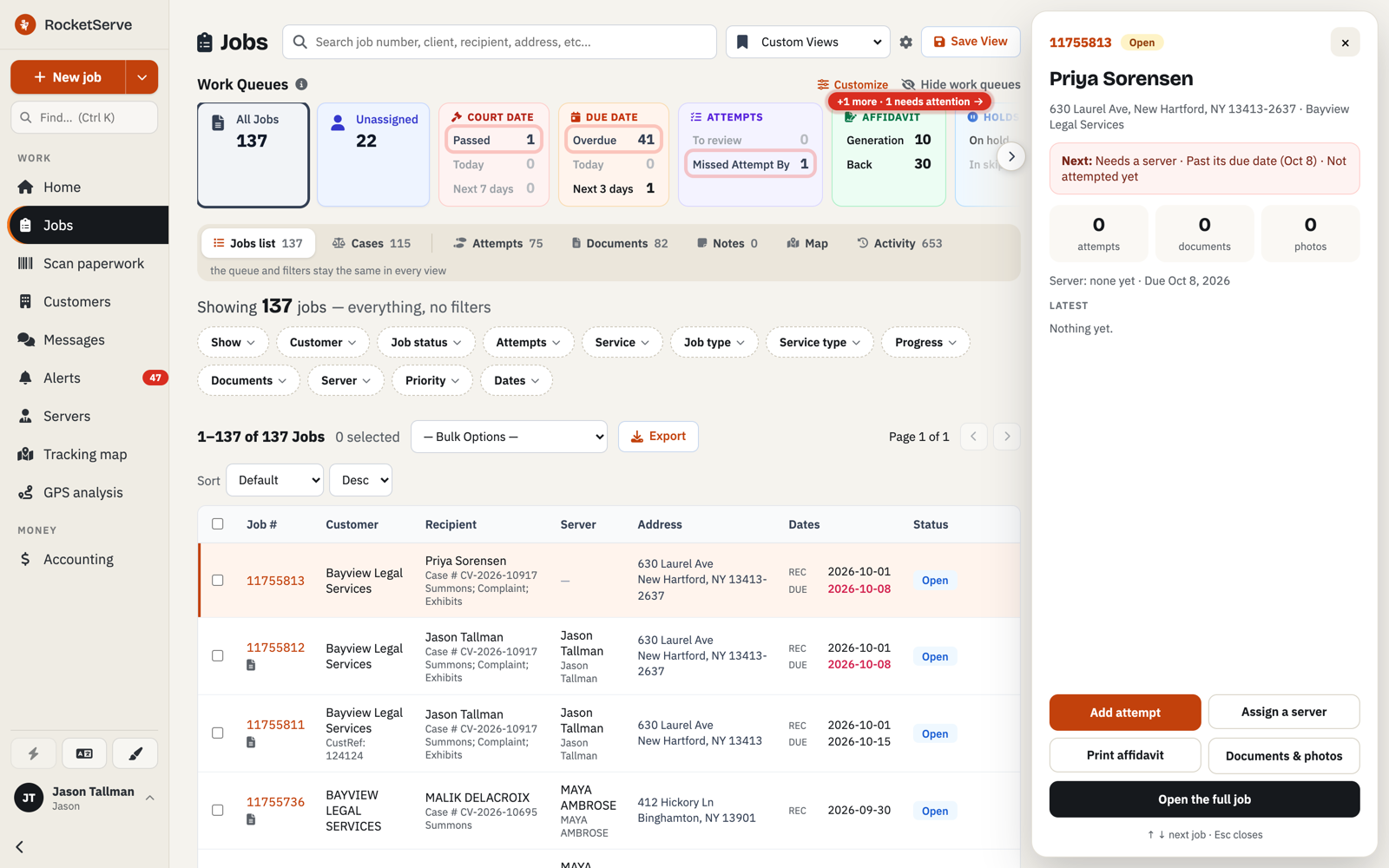
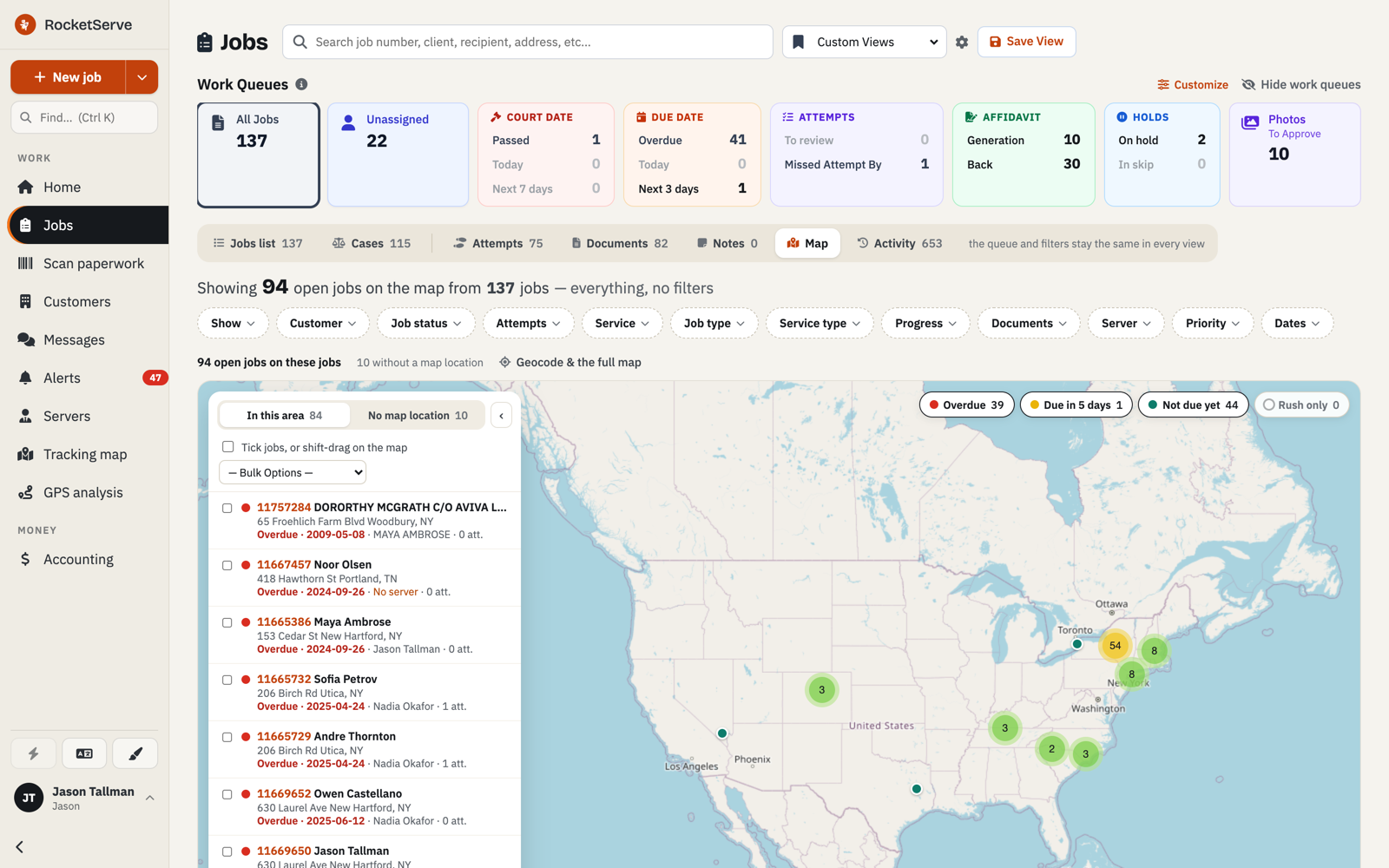
Open Jobs. The Work Queues across the top flag what is time-sensitive before you scroll: overdue, court date passed, missed attempt-by, affidavits waiting to come back, photos to approve. Click a row and a peek panel slides in. Approve the attempt, assign a server, print the affidavit, all without losing your place.

Switch to Map, drag a box around a cluster of pins, and assign every job inside it at once. Export the whole filtered list to CSV; there is no row limit. Save the view and it is there tomorrow.

Most of dispatch is small decisions. The peek panel is there so each one costs a glance, not a page load.Why the panel
Jobs screen with Work Queue tiles across the top: All Jobs 137, Unassigned 22, Court date passed 1, Due date overdue 41, Missed attempt by 1, Affidavit generation 10 and back 30, Holds 2, Photos to approve 10. Below, view tabs, filter chips, a Save View button, an Export button and the job table.
Work Queues on the Jobs screen. The queue and filters stay the same in every view: list, cases, attempts, documents, map, activity.

Zoomed in from Jobs and the peek panel

Work Queue tiles: Court date, Passed 1, Today 0, Next 7 days 0; Due date, Overdue 41, Today 0, Next 3 days 1.
Court date passed: 1. Overdue: 41. Flagged before you scroll. Click a tile and the list becomes that work.
Work Queue tiles: Attempts, To review 0, Missed Attempt By 1; Affidavit, Generation 10, Back 30.
Missed attempt-by: 1. Affidavits back: 30. The queues that cost money when they slip.
Peek panel detail: a Next line reading Needs a server, Past its due date, Not attempted yet; counters for 0 attempts, 0 documents, 0 photos; Server: none yet, Due Oct 8, 2026.
The peek panel says what is next. Needs a server, past its due date, not attempted yet: the job's own to-do line.
Peek panel buttons: Add attempt, Assign a server, Print affidavit, Documents and photos, Open the full job.
Act from the list. Add attempt, assign a server, print the affidavit. Arrow keys move to the next job.
Map view side list header: In this area 84, No map location 10, the instruction Tick jobs, or shift-drag on the map, and a Bulk Options menu.
Shift-drag a box, then Bulk Options. Every job inside it, assigned in one motion.
Map legend chips: Overdue 39, Due in 5 days 1, Not due yet 44.
Pins colored by urgency. Overdue 39, due in 5 days 1, not due yet 44.
Jobs list with the Job at a glance peek panel open on the right: the recipient, address, a Next line, counts of attempts, documents and photos, and buttons for Add attempt, Assign a server, Print affidavit, Documents and photos, and Open the full job.
Peek panel beside the list, so you never lose your place.
Jobs map view: a side list of open jobs with checkboxes and a Bulk Options menu, and a map of the United States with clustered pins and a legend for Overdue 39, Due in 5 days 1, Not due yet 44.
Map view. 94 open jobs, 84 of them on the map as pins; tick them, or box-select on the map.
10:40 am

Your servers get it on their phone.

The job lands in the RocketServe app for iPhone and Android. Your server accepts it, logs the attempt, takes the GPS-stamped photo at the door, and marks it complete. It is on the job in the office while they are still standing there.

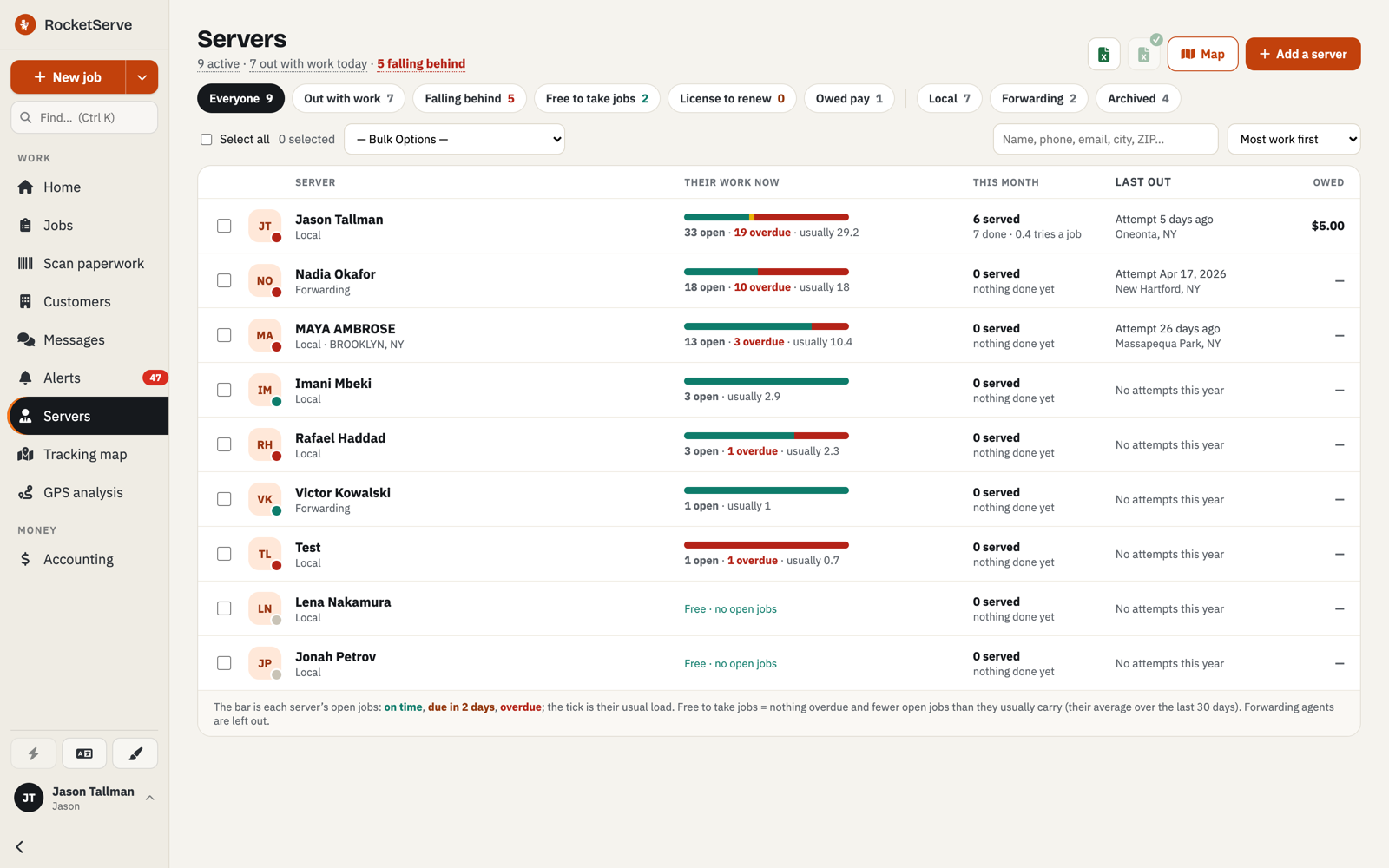
Back at your desk, the Servers page shows each person's load as a bar against what they usually carry: out with work, falling behind, free to take jobs. So you hand the next one to someone who can take it.

The app asks a server for four things: accept, attempt, photo, complete. At a doorstep, four is plenty.Why it is small

The RocketServe app, Office side

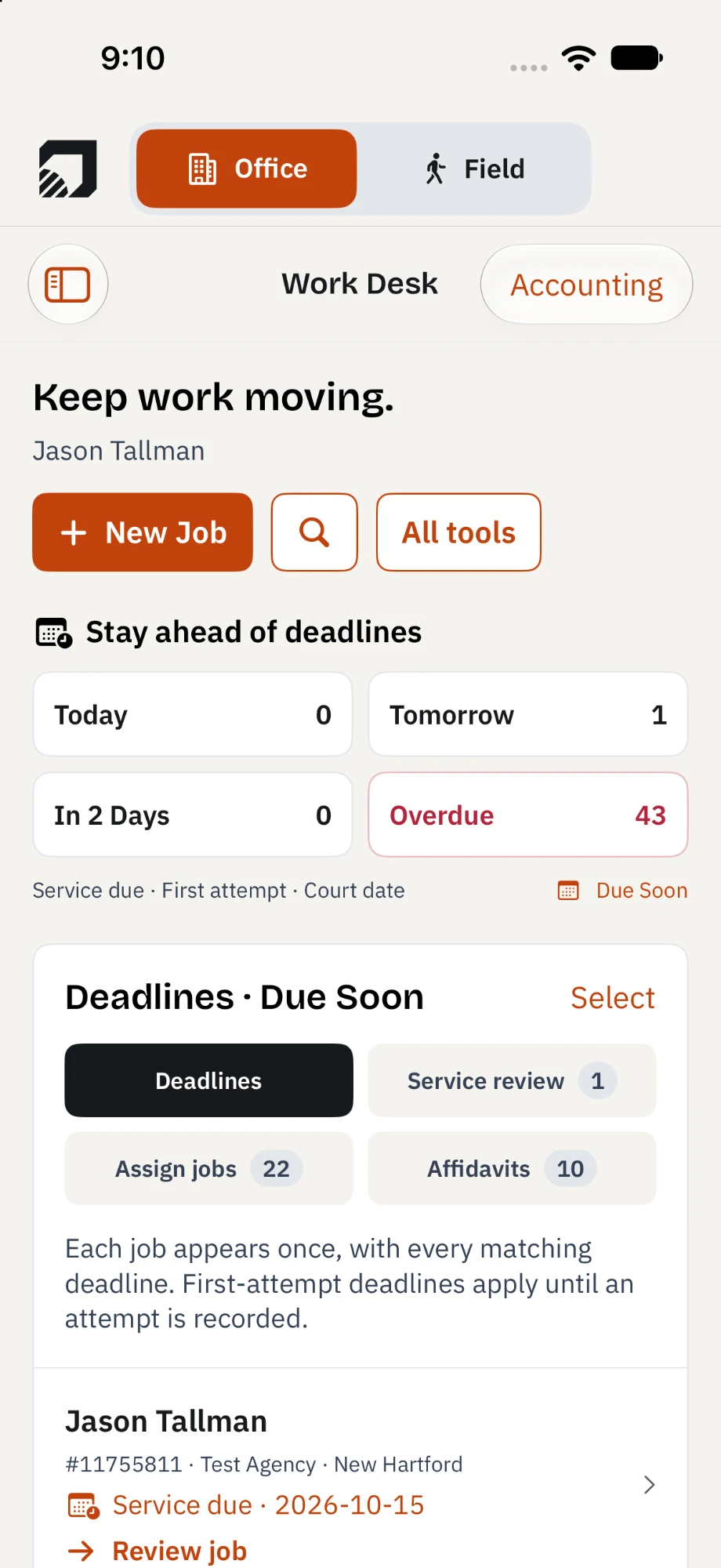
RocketServe app on iPhone with the Office | Field switch set to Office: the Work Desk, headed Keep work moving, with New Job, search and All tools buttons; Stay ahead of deadlines tiles for Today 0, Tomorrow 1, In 2 Days 0 and Overdue 43 in red; a Deadlines · Due Soon panel with chips for Service review 1, Assign jobs 22 and Affidavits 10; and the first job row showing Service due 2026-10-15 with a Review job link.
The Work Desk on iPhone: 43 overdue, 22 jobs to assign, 10 affidavits to get back, and the next job to review.
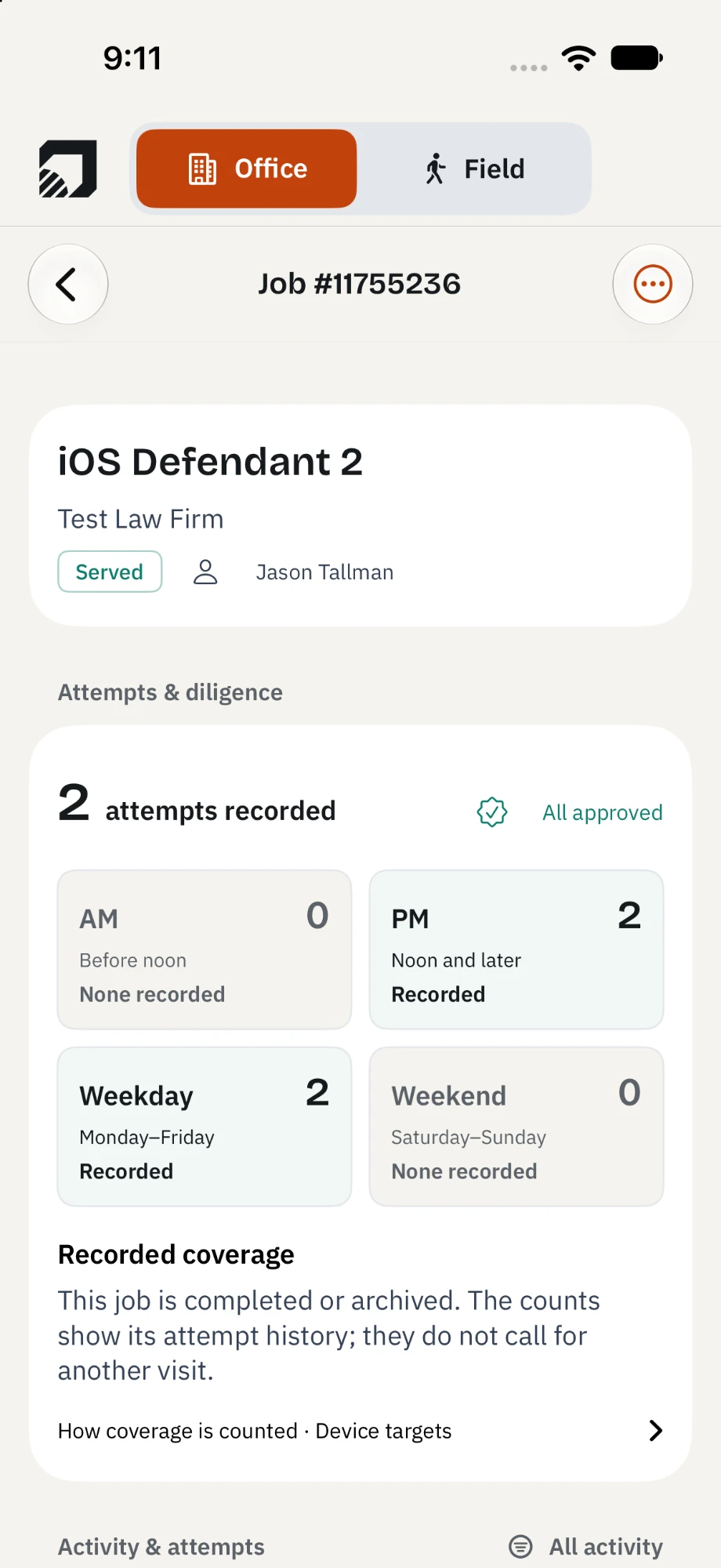
RocketServe app on iPhone, Office side: Job #11755236 with a recipient card showing the client, a green Served chip and the assigned server; an Attempts & diligence card reading 2 attempts recorded, All approved, with coverage tiles AM 0, PM 2, Weekday 2, Weekend 0, a Recorded coverage note, a How coverage is counted · Device targets link, and an Activity & attempts heading.
One job on iPhone: served, 2 attempts recorded, all approved, and the AM, PM, weekday and weekend coverage they add up to.
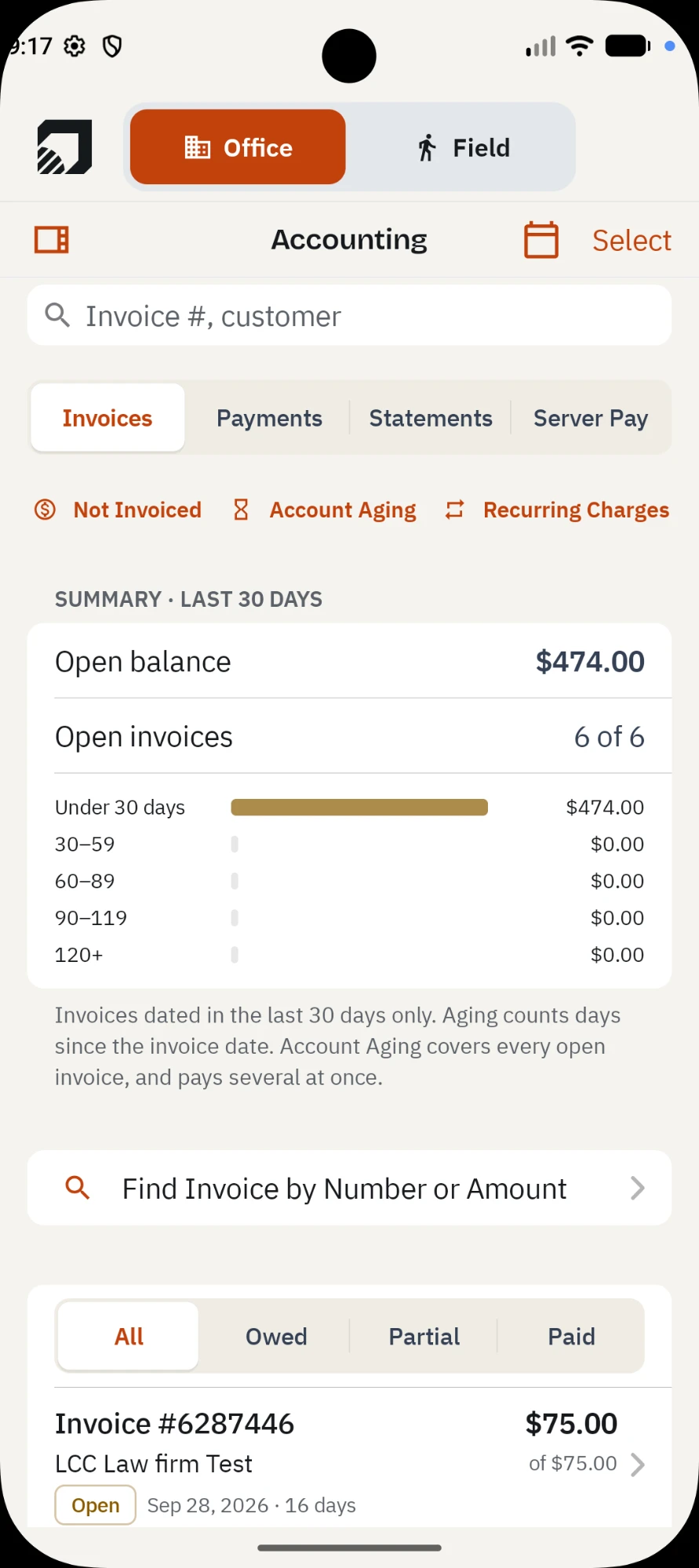
RocketServe app on Android, Office side: Accounting with Invoices, Payments, Statements and Server Pay tabs; Not Invoiced, Account Aging and Recurring Charges links; a Summary · last 30 days card with Open balance $474.00, Open invoices 6 of 6 and aging bars for Under 30 days, 30–59, 60–89, 90–119 and 120+; a Find Invoice by Number or Amount row; an All, Owed, Partial, Paid filter; and invoice #6287446 for $75.00, marked Open.
Accounting on Android: $474.00 open across 6 invoices, aged by bucket, with Payments, Statements and Server Pay one tab over.

The Office | Field switch at the top of each screen is the same app's two sides. Office is what you and your staff carry: the Work Desk, job lists, job detail and accounting. Field is what your servers run on the doorstep: accept jobs, log attempts, capture GPS photos, mark complete.

Zoomed in from the Servers screen

Servers page header: 9 active, 7 out with work today, 5 falling behind, with filter chips for Everyone 9, Out with work 7, Falling behind 5.
9 active, 7 out with work, 5 falling behind. The chips are the question you were about to ask.
Three workload bars: 33 open with 19 overdue against a usual 29.2; 18 open with 10 overdue against a usual 18; 13 open with 3 overdue against a usual 10.4.
Load against the usual. 33 open, 19 overdue, usually 29.2: that server does not get the next job.
Servers list with chips for Everyone, Out with work, Falling behind, Free to take jobs, and a row per server showing a workload bar of open and overdue jobs, this month's served count, last attempt and owed pay.
Servers. The bar is each server's open jobs; the tick is their usual load.
11:30 am

The forwarded jobs stay on the map.

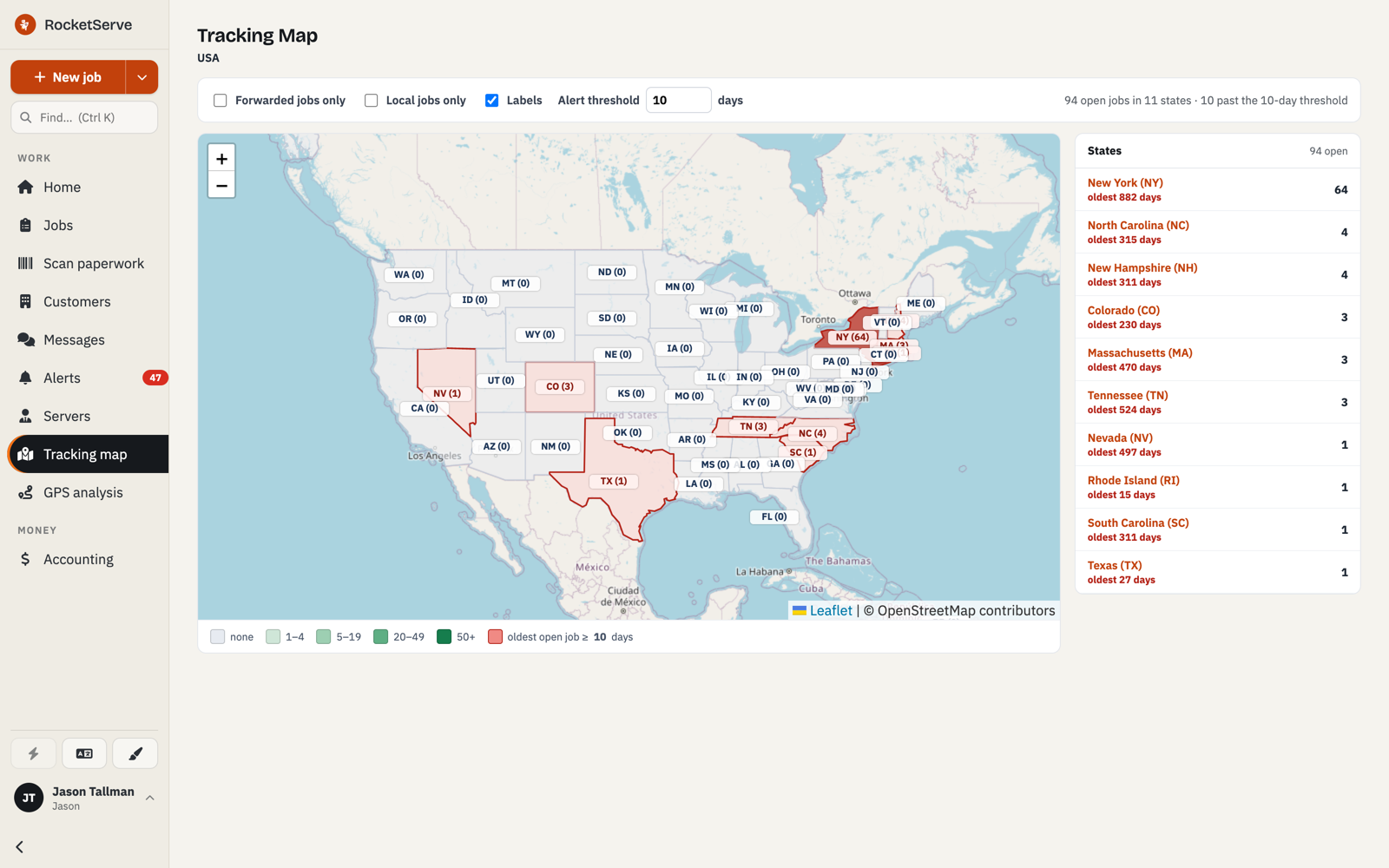
Work you send across state lines is the easiest to lose track of. The Tracking Map shows every open job by state and county, and a region turns red the moment its oldest open job passes the day threshold you set. Red means pick up the phone.

A job you forwarded is still your job. The map keeps it in view until it is done.Why it is a map
Tracking Map of the USA with a 10-day alert threshold: states past the threshold are outlined red, each state is labeled with its open job count, and a side list ranks states by open jobs with the age of the oldest.
Tracking Map. On this sample account: 94 open jobs in 11 states, 10 past the 10-day threshold.
Summary line: 94 open jobs in 11 states, 10 past the 10-day threshold.
10 past the threshold. The day count is yours to set.
States list: New York 64 open, oldest 882 days; North Carolina 4 open, oldest 315 days.
Ranked by open jobs, with the oldest. New York 64, oldest 882 days. That is the first call.
2:40 pm

Someone swears nobody ever came.

An attorney calls. The defendant is challenging the affidavit: no one showed up, ever. In most offices this is an afternoon of pulling phone records and hoping.

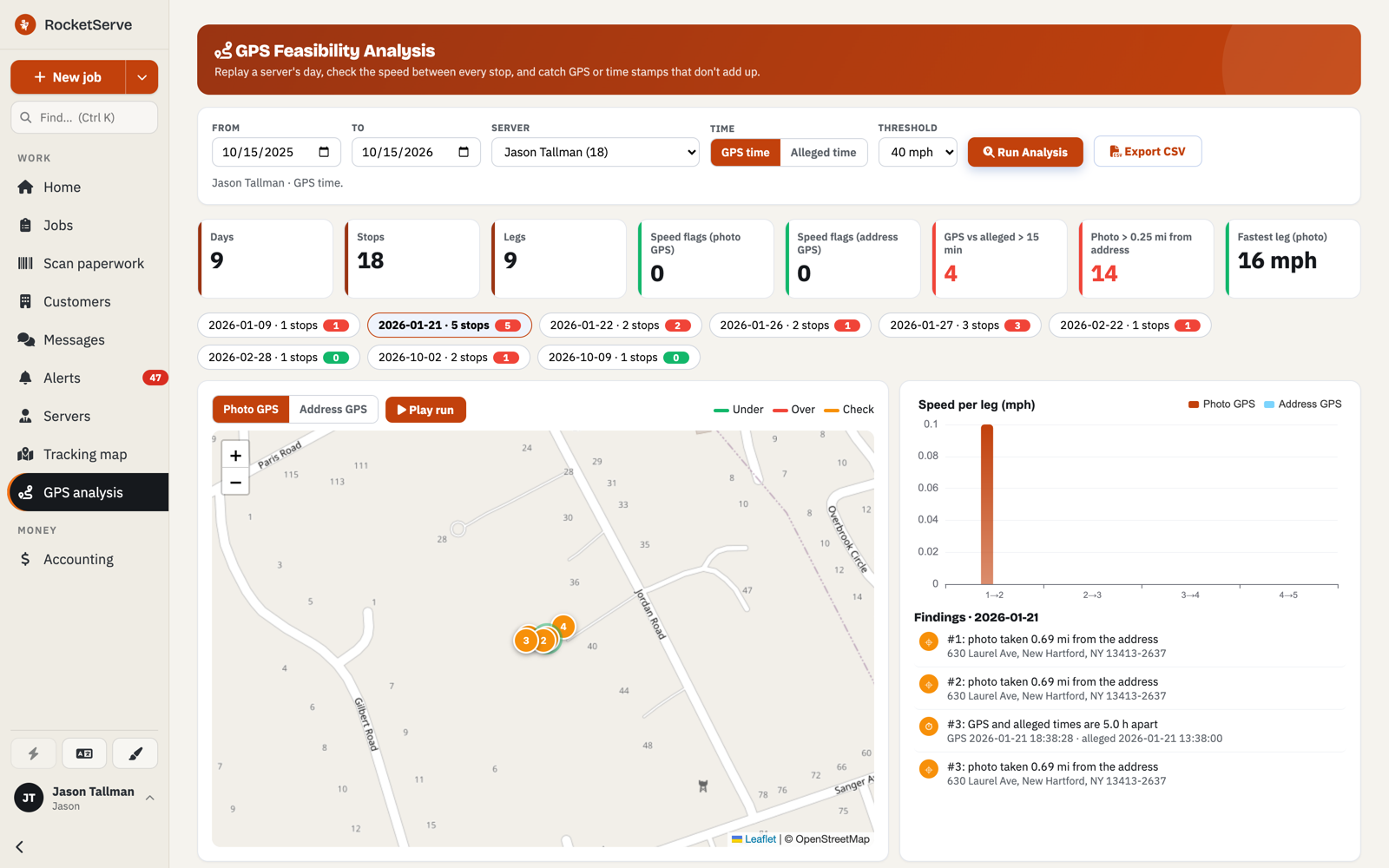
Open GPS Analysis. Pick the server and the date. It replays the whole day on a map, numbered stop by stop, and works out the speed on every leg between them. Then it flags what cannot be true: a leg faster than your mph threshold, more than 15 minutes between the GPS clock and the sworn time, a photo taken more than 0.25 miles from the address. The findings are written in plain English. Export CSV, attach it, done. Minutes, not an afternoon.

It works because every attempt in RocketServe carries a GPS-stamped photo, taken from the app at the door.

Proof you cannot explain in a sentence is not proof. That is the whole design brief for this screen.Why it reads like a sentence
GPS Feasibility Analysis: date range, server and 40 mph threshold controls, eight KPI tiles including speed flags, GPS versus alleged time over 15 minutes, and photos more than 0.25 miles from the address, a row of day chips, a replay map with numbered stops and a Play run button, a speed-per-leg chart, and a Findings list.
The replay. Photo GPS or address GPS, GPS time or alleged time, your threshold. Press Play run to watch the day.

Zoomed in from GPS Analysis

Two red flag tiles: GPS vs alleged over 15 minutes, 4; Photo over 0.25 miles from address, 14.
4 time gaps. 14 far-away photos. Flagged automatically against the thresholds, in red.
Controls: Threshold set to 40 mph, a Run Analysis button and an Export CSV button.
Your threshold, your export. 40 mph here; the number is yours to set. Export CSV goes in the file.
Replay controls: Photo GPS, Address GPS, and a Play run button.
Play run. Watch the day happen, stop by stop, from photo GPS or address GPS.
Two tiles: Days 9, Stops 18.
Nine days, eighteen stops. Pick the day the attorney is asking about; the replay and the findings follow it.
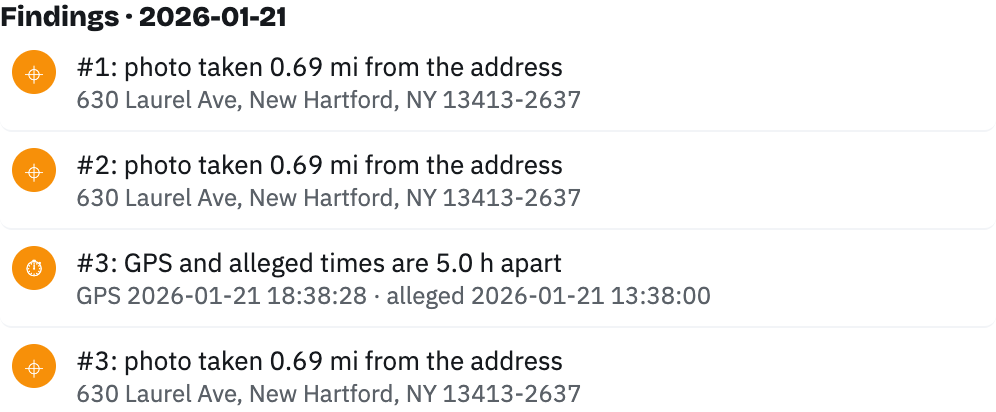
Findings for one day: photo taken 0.69 miles from the address, listed with the address; GPS and alleged times are 5.0 hours apart, listed with both timestamps.
Findings, in plain English. On this demo day it caught a photo 0.69 mi off and a 5-hour time gap; a clean day reads clean. Either way, this is what you hand the attorney.

Run this on one of your own jobs during the trial. It is the few minutes that matter.

5:15 pm

Money: who owes you, and who you owe.

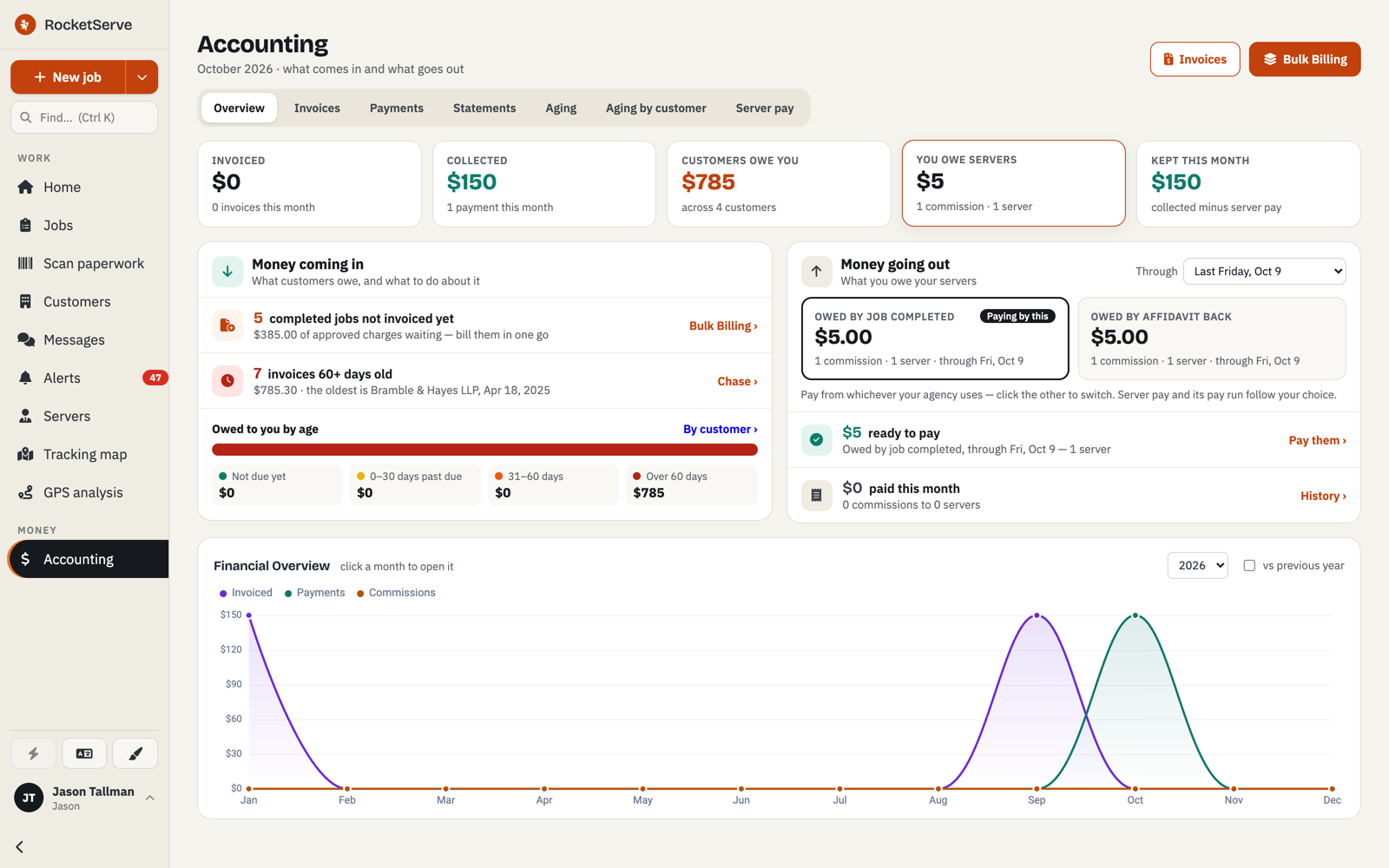
Accounting Overview answers those two questions on one screen: invoiced, collected, customers owe you, you owe servers, kept this month. Completed jobs not invoiced yet are counted and waiting for you. So are the invoices past 60 days.

Charges are added by hand. Nothing auto-bills a client while you are not looking. When it is right, compile the charges into numbered invoices, or run Bulk Billing: one invoice per customer, in one go. Email it with a Pay Now link. Record partial payments. See aging by customer. Let statements auto-email monthly if you want them to.

Servers are paid from the same place: commissions set per coverage ZIP, pay runs by job-completed or by affidavit-back, your choice.

The most expensive invoicing mistake is sending one before it is right. So nothing leaves until you say so.Why it is manual
Accounting Overview: tiles for Invoiced, Collected, Customers owe you, You owe servers and Kept this month; a Money coming in panel listing completed jobs not invoiced yet and invoices over 60 days old with an owed-by-age bar; a Money going out panel with pay owed by job completed or by affidavit back; and a Financial Overview chart by month.
Overview. Money coming in on the left, money going out on the right, and the pay basis you choose for servers.Money coming in: completed jobs not invoiced yet, invoices past 60 days, and what you are owed by age.

Zoomed in from Accounting

Money coming in: 5 completed jobs not invoiced yet, $385.00 of approved charges waiting, bill them in one go; 7 invoices 60 or more days old, $785.30, the oldest from April 2025.
5 jobs done, not billed. 7 invoices past 60 days. Counted for you before you go looking.
Owed by job completed: $5.00, 1 commission, 1 server, through Friday Oct 9, marked Paying by this.
Pay by job completed, or by affidavit back. Your agency's rule, and the pay run follows it.
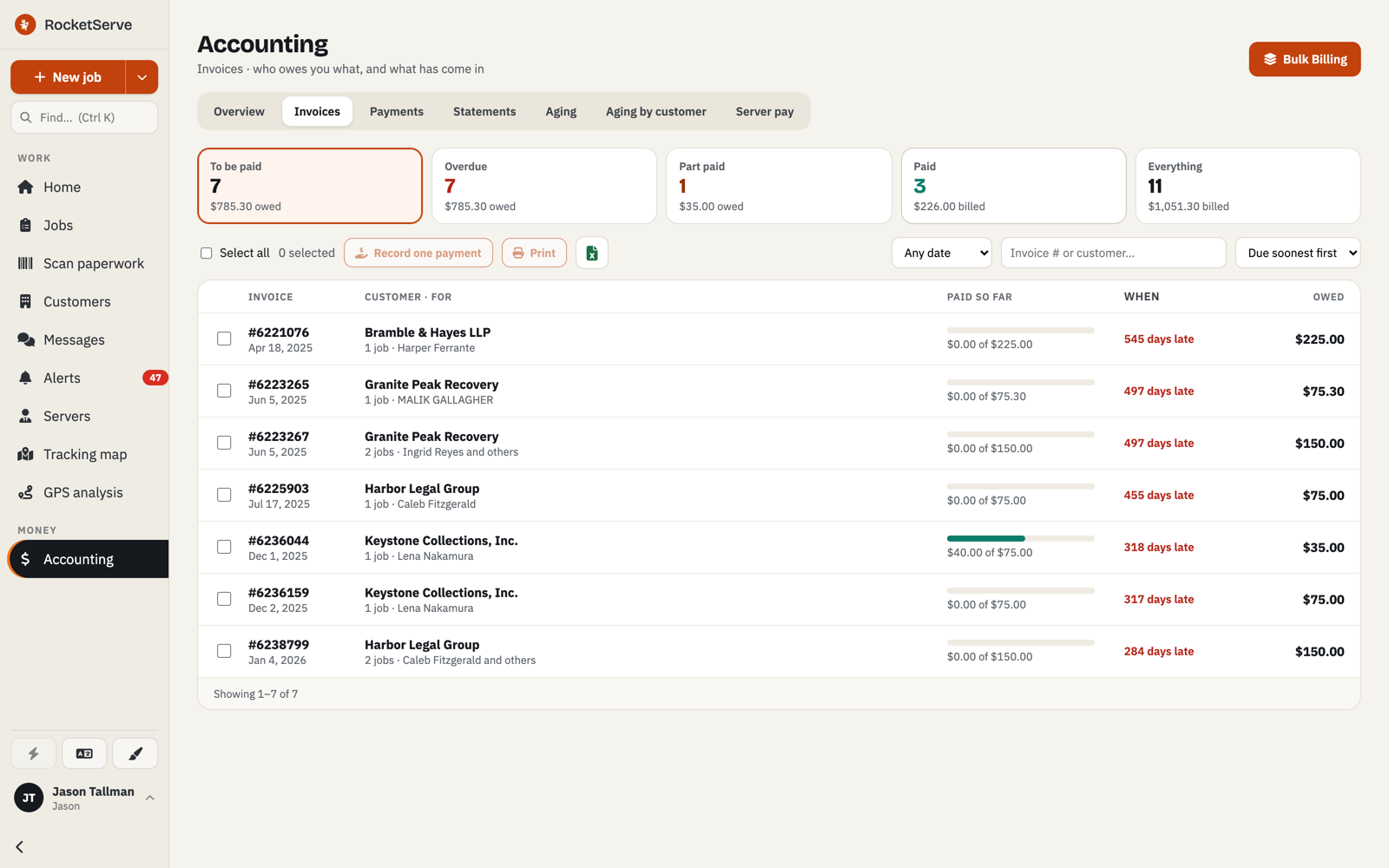
Invoices stage tile: To be paid 7, $785.30 owed.
To be paid: 7, $785.30. Stage tiles for to be paid, overdue, part paid and paid.
An invoice row's paid-so-far bar: $40.00 of $75.00, 318 days late.
$40.00 of $75.00. Partial payments show on the row, with how late the rest is.
Invoices list with stage tiles for To be paid, Overdue, Part paid, Paid and Everything, a Record one payment button, and rows showing each invoice's customer, paid-so-far bar, days late and amount owed.
Invoices. To be paid, overdue, part paid, paid. Record one payment, in full or in part.

That was one day. Run yours in it.

Seven days free, on your own jobs. It starts with a short form, and a person follows up.

Two reasons agencies move to us.

We build what you ask for.

The roadmap is driven by customer requests. Tell us what is slowing you down, and that is what gets built next. It is the reason the product is shaped like a working agency.

Fanatical support. Real humans.

Email or phone, and a person who knows the product answers. Not a bot, not a ticket number you never hear from again. support@rocketserve.app and 844-725-8778.

“I think what we are witnessing here is the beginning of the end of S****M*****r! And I for one could not be more excited!”

Michael Harbuck Trinity Process · Middle Georgia

What it runs

One login. The whole agency.

There is no agency this is not for. It is designed to scale with you, from a solo server to a multi-office agency, on the same screens.

  1. 01
    Live DashboardJobs created, attempts, served, overdue and due pipeline, receivables aging, money issued vs paid. Current within seconds; every number clicks through.
  2. 02
    AI Job EntryDrop the documents, the AI fills the job: court match, case number, filing date. You review before it is created.
  3. 03
    Jobs and Work QueuesOverdue, court today, missed attempt-by, flagged before you scroll. Peek panel, saved views, CSV export with no row limit.
  4. 04
    Dispatch mapEvery open job as a pin. Box-select and bulk assign.
  5. 05
    RocketServe apps for iPhone and AndroidServers accept jobs, log attempts, capture GPS photos, mark complete.
  6. 06
    GPS-stamped proof and GPS AnalysisA photo with coordinates on every attempt. Replay a day, flag impossible speed, time gaps and far-away photos, export CSV.
  7. 07
    Tracking MapOpen jobs by state and county. A region turns red when its oldest open job passes your day threshold.
  8. 08
    InvoicingManual charges, numbered invoices, bulk billing, email with Pay Now, partial payments, aging, monthly statements.
  9. 09
    AccountingWhat came in, what went out, who owes you, who you owe. One screen.
  10. 10
    Server payCommissions per coverage ZIP. Pay runs by job-completed or affidavit-back.
  11. 11
    Client loginThe firms that send you jobs get their own login to check status instead of calling.
  12. 12
    Training and supportA free community with a full Classroom, live Office Hours, and humans on email and phone.

Pricing

Priced for the size you are. Built for the size you will be.

A solo server pays for the jobs they do. A multi-office agency pays for the jobs it does. The subscription grows with the work.

  • Your clients get their own login to check job status.
  • Free customer community, Classroom and live Office Hours.
  • Support by email and phone from real people.

What a month looks like

Same arithmetic at any size.

Jobs in the monthYou pay
Up to 80$40
200 ($40 + 120 × 50¢)$100
500 ($40 + 420 × 50¢)$250
$40/month for 80 jobs

Starts at $40/month for 80 jobs, then 50¢ for each job after that.

7-day free trial. Fill in the short form or call us to start, and we will have you inside RocketServe with your own agency account.

Start your free 7-day trial

Prefer to talk first? 844-725-8778

Training

Best-in-class training, and it is free.

Software you do not know how to use is just a monthly bill. So every customer gets the RocketServe community: a full Classroom and live Office Hours where you bring your real questions and we answer them on screen.

rocketserve.circle.so
  • ClassroomCourses from your first job to proof of service and the dashboard. Watch at your pace.
  • Live Office HoursBring a real job, a real invoice, a real question. We work through it live.
  • The communityOther agency owners and the people who build the product, in one place.

The questions people ask before they start.

Straight answers. If yours is not here, call 844-725-8778 and ask a person.

We are two people. Is this too much software for us?

No. There is no agency this is not for. A solo server uses Home, Jobs, the app and invoicing on day one and grows into the rest. Starts at $40/month for 80 jobs, then 50¢ for each job after that, and the same system runs multi-office agencies.

I already run on another system. What does moving over look like?

Tell us what you use today when you sign up or call; we will walk you through exactly what moving your jobs and customers involves before you start the trial.

Will I get surprise bills, from you or from my own invoicing?

From us: the subscription is the sentence on this page, $40/month for 80 jobs, then 50¢ for each job after that. AI document reads are optional, and a dialog shows you what a read costs before it starts. In your own invoicing: charges are added by hand, nothing auto-bills a client, and an invoice only ever contains what you put on it.

My servers will not learn a new app.

The RocketServe app for iPhone and Android asks them for four things: accept the job, log the attempt, take the GPS photo, mark it complete. That is the whole job of the app.

Can my clients check status without calling the office?

Yes. The firms that send you jobs get their own login. It is the second option on the login form at the top of this page.

How do I prove a serve when someone says it never happened?

Open GPS Analysis, pick the server and the day, read the findings, export the CSV. It flags impossible speed, GPS-to-sworn-time gaps over 15 minutes, and photos more than a quarter mile from the address. Minutes, not an afternoon.

What happens when I am stuck?

Email support@rocketserve.app or call 844-725-8778 and a person who knows the product answers. For the rest, the Classroom and Office Hours are free.

What does the trial involve?

Seven days, free, inside your own agency account. Sign up or call to start, then run real work through it: intake a stack of documents, send a server out with the app, replay their day in GPS Analysis, bill it. If it is not for you, you have lost nothing.

Take the seven days. Run one real day in it.

You have read the day. Now run yours in it: tomorrow's jobs, tomorrow's attempts, tomorrow's invoices. If RocketServe does not make the day shorter, stop, and tell us why, because that is how the roadmap gets written.

Jason Tallman — Co-Founder Rob Dayton — Co-Founder RocketServe · support@rocketserve.app · 844-725-8778

Starts at $40/month for 80 jobs, then 50¢ for each job after that. Already a customer? Log in.